Second Brain Part 1
Jul 31 2026
At work I’ve been required to do a lot more with AI. I work at Google, so AI is pretty big there right now. And while I do find that I have to write less code and spend more time describing structures instead, the work of crafting a program is still there. However, since it does speed up development for me at this point, I decided that I should utilize the tool for my personal projects as well. This is partly to get better at using AI, but also to just write things that I otherwise wouldn’t have time to write. In addition, incorporating local AI in some of these tools lets me build some things I couldn’t before.
The Problem
One project that has become more important to me lately is to create a second brain. I find that I often need to take a quick note about something that I don’t want to forget. For instance, I have a project where I’m remodeling my pantry. During that I end up having to take a lot of measurements. I measured all of the walls of the space and jotted them down on a piece of loose paper, then lost the paper and had to take those measurements again.
So what app do I use? There are thousands of options and while I was researching them, I couldn’t find one that did what I actually wanted, which was to handle the filing portion for me. When I have a thought or an idea I want to remember, I usually just want to jot it down quickly. Notes become useless if I can’t later find or act upon them. A jumble of Google Keep or Obsidian notes that are loosely thrown together isn’t helpful. Going through those notes later to organize them takes a lot of time, which I’m frankly not going to spend. It would be nice to have a system that would help me both organize and surface my notes and ideas.
Teravangian
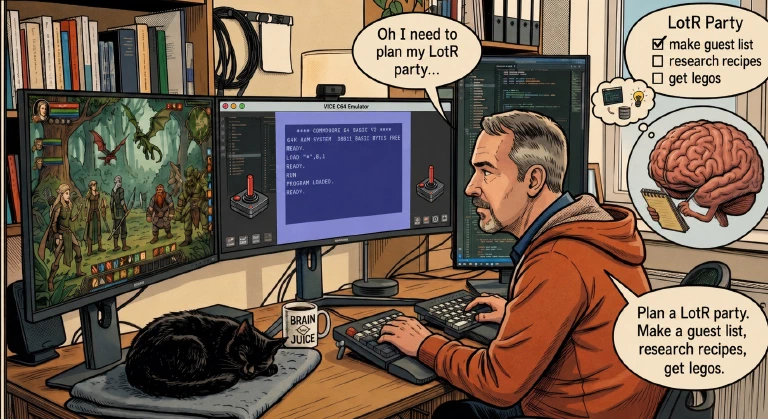
I’m a huge fan of Brandon Sanderson, especially his Stormlight Archive series. One of my favorite characters is Taravangian, who gained a boon from a being that gifted him with a perfect day of supreme intelligence. On that day he was so smart that he could predict the future because he could play out the possibilities in his mind and know the most likely outcomes. He wrote everything he could down all over a room and those details together became known as “The Diagram”.
The boon came with a curse in that his intellectual capacity was counterbalanced by his empathy. More of one meant less of the other. Amusingly, building a system smart enough to file my notes doesn’t give it any sense of why they mattered. I guess I just have to try to do those parts myself.
I named the project Teravangian (misspelled a long time ago, but it’s in too many places to fix) after that character and the vault where my data lives is known as The Diagram.
Requirements
With the above problem to solve, the requirements start to form. On a basic level my second brain needs to do the following:
- Capture First - The main page of the app needs to be a place where I can either write or talk to it in order to get ideas out as quickly as possible.
- Self Organization - The system should be able to file away all notes into their appropriate locations automatically.
- Surface Important Items - Things that I need to deal with should be surfaced so that I remember them.
- Easy to Query - Finding information should be easily done with a simple text or voice command.
- Open Formats - All of my data should be in easily readable open formats. Nothing proprietary or binary. I want to stay away from storing my source-of-truth data in a database since that’s not something a human can just open and read.
- Cheap - Either self-hosted on hardware I already own, or able to be served by some sort of free hosting solution.
These basic requirements would hopefully give me an app that I can use wherever I am to quickly and cheaply file my thoughts and re-surface them when needed. Five years ago I would have said that numbers 2 and 4 were the hard ones, maybe impossible for me to program, but they are the ones that matter most. Luckily, we live in a world where those problems are now solvable.
The Tech
Go and Cloudflare
The Teravangian project is written in Go because I wanted a small fast binary that’s statically typed and without a heavy runtime or VM (which excluded Python and the JVM). I thought about Rust, but I felt that Go was a bit more mature for this use case. The project has a web-based UI for capturing, querying, displaying, and editing data.
Go makes small and fast binaries with very little overhead so it makes local hosting for testing easy. However, most of the time I’m going to want to be able to access Teravangian while away from my house, and that’s where Cloudflare Tunnel comes into play.
Cloudflare Tunnel is an easy-to-set-up and free (if it’s for a small personal project like this one) tunnel system that lets you host a service on your local network and associate it with a domain name while not exposing your machine or internal network to the dangers of the internet. You don’t need to open any ports on your router, nor do you have to harden your machine or app from exposure. Paired with Cloudflare Access, its Zero Trust gateway, nothing reaches my server except authorized users. I connected mine up to a subdomain of developeraspirations.com. I can go to that site, authenticate with Cloudflare, and my local machine is now handling my requests. I would highly recommend it, and it’s what really helps solve requirement 6 because I don’t need to use any cloud hosting.
Obsidian and Markdown
Before creating Teravangian, my main note taking application was Obsidian. Obsidian uses simple portable markdown files and interconnected wiki links between entries. Even though it’s a closed-source program, the data format is completely open and easily read in other apps or reused. I decided to base my data format on Obsidian, with all of my notes and projects in markdown files and in a folder structure compatible with Obsidian. The Diagram in Teravangian is also a valid Obsidian vault and there’s two-way compatibility. I can open and edit data in Obsidian, save it, and it will appear in Teravangian just fine.
This handles number 5 on my requirements list as even if I decide to stop using the project, I would still have all of my data in plain markdown files that I can use with Obsidian or any other markdown editor.
Main Paths
Teravangian is broken up into 4 main screens. Capture, Browse, Ask, and Dashboard. There’s also a variety of settings, vault management, and documentation. I’ll cover Capture here and the rest in part 2.
Capture
The Capture screen is the most important one. It’s the starting point of the app and what you see when you first open it up, allowing you to record whatever thought you have as quickly and easily as possible, solving for requirement 1.
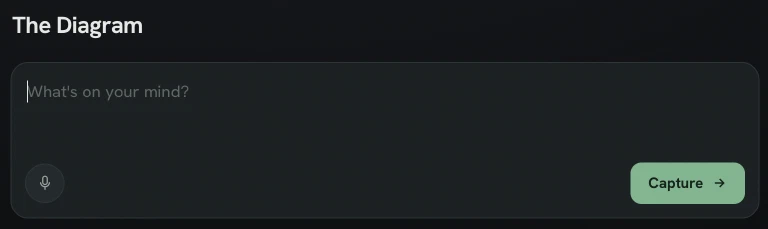
There are two forms of data entry on the capture page: Text and Voice. If you use voice, your voice data is sent to the server where a local transcription process is run to extract it into text using a version of Whisper. Whisper is pinned to the CPU as I would get Out of Memory errors on the GPU when paired with the LLM due to limited VRAM. It only takes a few seconds to run even on the CPU. Afterwards, the transcription (or text if you entered text) is then processed.
Categorizer
The main draw for me in making Teravangian was that I didn’t want to have to figure out where to put my notes. Navigating to the specific place before entering any data felt like it took too much time. I want requirement 2, which is to have all of my notes and thoughts be self-organizing. This is where the Categorizer comes into play. It is one defining feature of Teravangian over other note taking apps.
All data that comes in is written to a journal first so that no data can ever get lost. One rule the system is built around is never losing a capture. After the note comes in and is written to the journal, a server local LLM is called for the purpose of categorizing that note. It has a prompt that will help it determine which recording endpoint the data should go to. The main categories are as follows.
A New Project is created when the note seems project related. An example of this might be something like “I need to plan out the remodel of my pantry.” Something like that would get filed into Projects/Pantry Remodel/Pantry Remodel.md. The Projects directory is where all projects go. A project also gets its own folder and the root file for that is the same name as the folder. The folder matters because a project holds more than one file as it also includes related notes.
A note may also be filed into an Existing Project if it seems like the note is related. “The pantry is 10ft wide and 9ft long” is something that the categorizer would probably log in the pantry project as a new log entry as it’s generic data about the Pantry and probably related to the remodeling project.
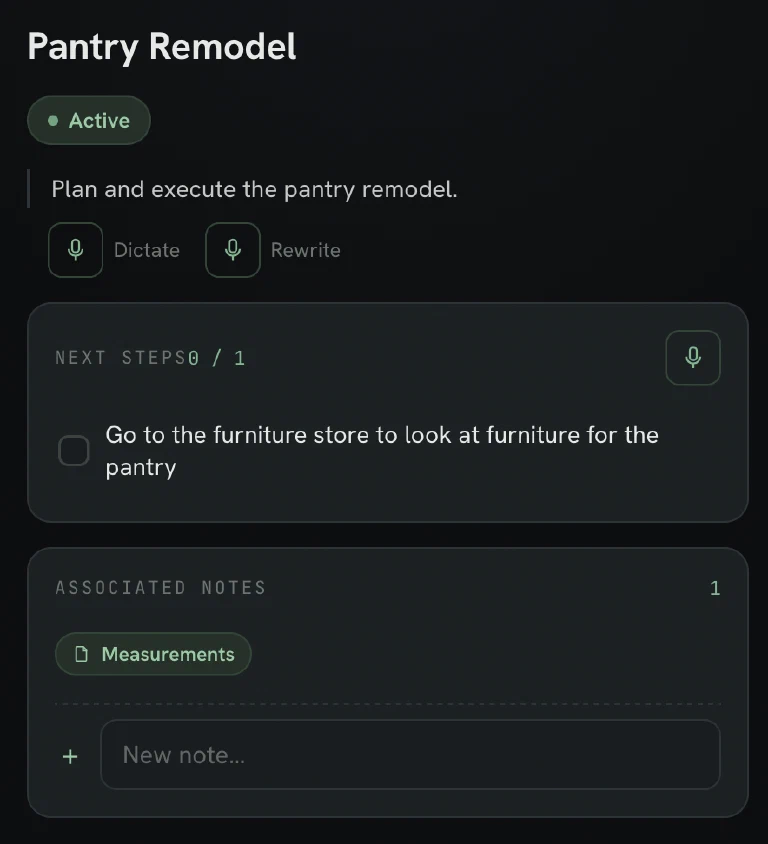
If there’s something you specifically need to do for a project, like a task that can be checked off, you can add a Next Step with a simple command: “make a task to go to the furniture store to look at furniture for the pantry”. You’ll end up with a Next Step checkbox in your Pantry Remodel project that says “Go to the furniture store to look at furniture for the pantry.” If there’s no matching project, a next step item will become a checkbox on the daily note instead.
Sometimes you want a specific note that you might be editing or adding to that isn’t related to a project but is more specific than the daily note allows. This is what a Standalone Note is for. The easiest way to create or append to one is to name it. “Make a Standalone Note for listing my top Anime of All Time. Put One Piece at the top, followed by Frieren, and after that add Spy x Family. Use a numbered list.” This results in a document in Notes/Top Anime of All Time.md with the contents:
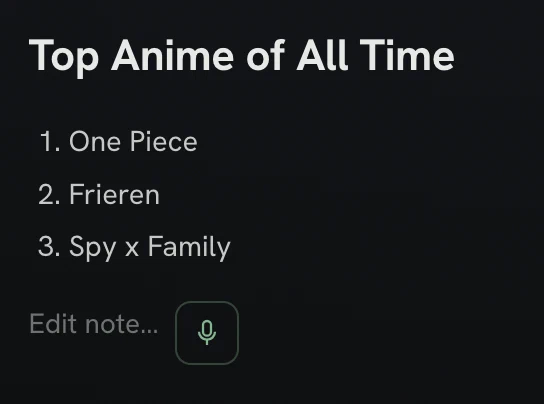
The categorizer is still an LLM, so you can give it both data and directions for your data which can be convenient.
You can also append to an Existing Standalone Note. “Another great anime is Food Wars, add it as the next item on my list”. A new entry will appear at the bottom of the Top Anime of All Time note.
Notes are also useful for keeping data related to a project. I might want to keep all of the measurements for my pantry. We can create a Project Note. Since I previously lost my measurements for my pantry, I can enter: “Make a Measurements note in the Pantry project. Add the following. The left wall is 118” long. The back wall is 112" long. The right wall is 96" long." We’re given a new document located in Projects/Pantry Remodel/Measurements.md that has 3 bullets:
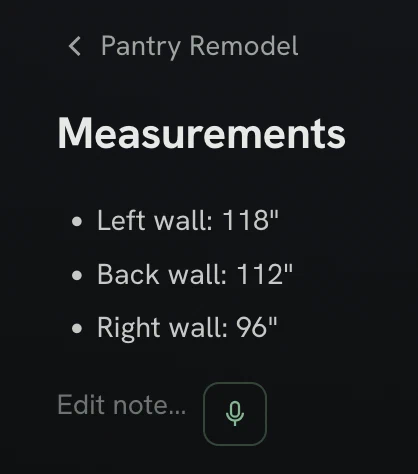
You can also append to Existing Project Notes easily. “In the pantry, the back wall has a window that is 72” wide with 25" free space on either side. The window is 22" from the floor and 15" from the ceiling." This will add a new line giving the window measurements.
In the end, I might be left with a project page that looks like this:
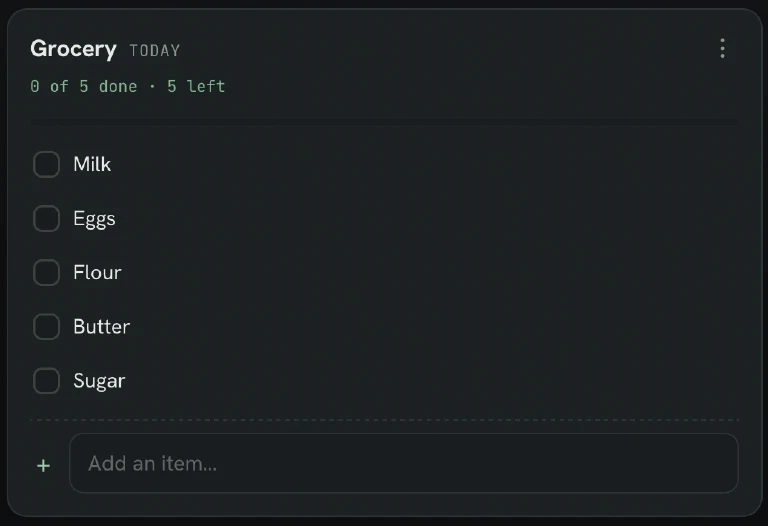
I find that some data I want to record is short-lived and List based in nature. This is especially common if I want to make a quick grocery list that I can read off and check items off of while at the store. The categorizer can recognize these lists and post them into Lists/. “I need to pick up Milk, Eggs, Flour, and Butter”. A new list is created with items that can be checked off.
If you think of additional things, you can append to an Existing List. “I also need Sugar.”
One-off statements that don’t seem to fit our other categories often go into the Daily Note, which is created or appended to when you want to remember something not related to a Project, List, or standalone Note. An example might be “Went to a friend’s house tonight and watched Anime.”
After 7 full days have passed into a new month, the previous month’s Daily Notes all get rolled up into a single monthly note. This keeps the vault tidy by collapsing many small unrelated notes into a single file for the month.
Sometimes, things go wrong and the categorizer runs into a problem. Because data should never be lost, problems with the categorizer end up filing your data into the Inbox. It could have been a network issue, the model might have been busy, or under too much load, or some other error. If for some reason the categorizer couldn’t work, data defaults to the Inbox for manual sorting or a retry.
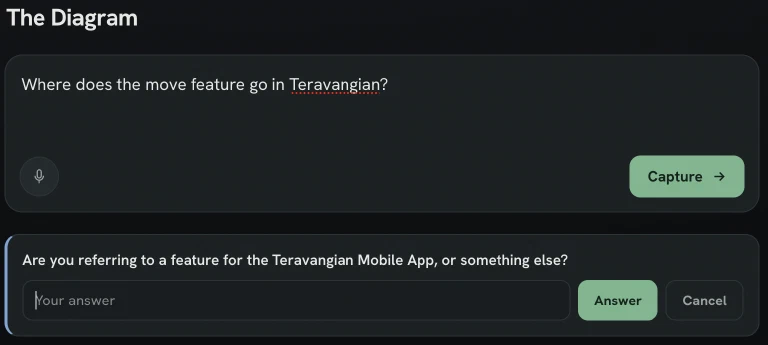
If the categorizer is unsure or if there’s something truly ambiguous (multiple projects with a similar name), it can ask a followup question to the user to help with categorizing.
Those are the main categories for now, though in the future I may expand to more data types. By using an LLM to categorize the data, each new category that is added makes the system less certain on every filing it does. The categorizer has gone through 12 revisions so far to tune where data goes. It now files correctly on almost all of the captures I perform. I expect additional tuning will need to be made to improve accuracy as I find gaps.
Storage, Movement, and Global Undo
After a category is selected, the note is then recorded in the appropriate place. However, the system isn’t perfect and due to that there’s two ways to help when something goes wrong.
First, if an item gets improperly categorized, there’s a built-in move feature for the item that pops up just after it’s stored. The move feature lets you change where the data got stored. It can be moved into a different project, a new project, the daily note, into a new Standalone Note, into a new Note under a Project, or onto a List.
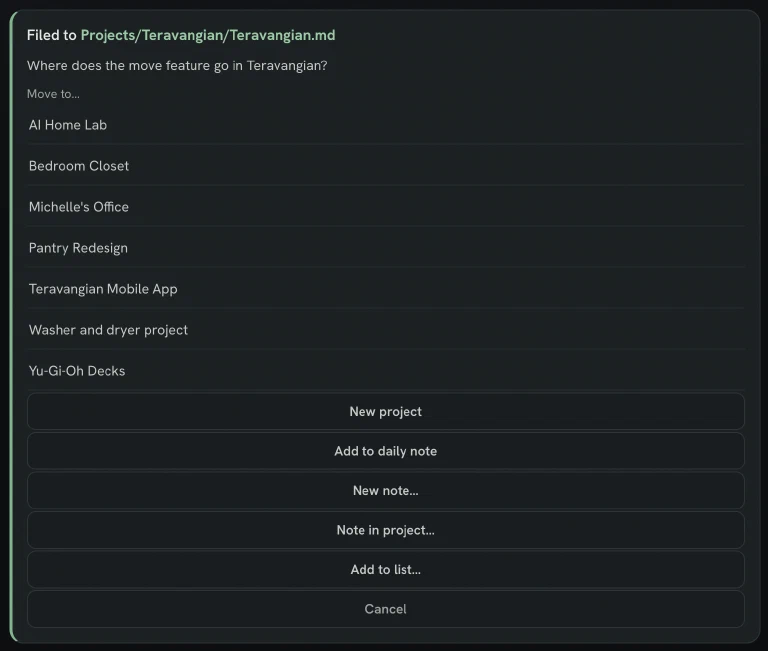
This lets you move data that was captured to somewhere else rather than having to hunt down where the data went and manually moving it yourself.
If you decide that you made a mistake and don’t actually want to record that data or perhaps that you performed a move that was incorrect, there’s a single level global undo that can undo your last action.
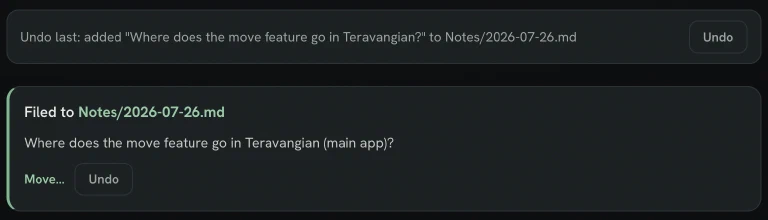
The undo is global for a vault. Since the app is multi-user where you may have access to additional vaults that are shared between users, the undo on those vaults is globally shared across users.
That covers getting data into The Diagram, which is the part I care most about. It has also been the most interesting part of the project to work on and the one that feels the most useful to me. Being able to not think as much about where my notes go has helped a lot both with actually taking notes and with finding them again.
I have 8 projects, 4 standalone notes, and several daily notes and lists from the last 2 months as I’ve been developing the app. I actually often use Teravangian to jot down ideas to improve it. The daily note can often replace the bullet journal entries I used to take.
In part 2 I’ll go through the rest of the app including browsing the vault, querying it with an LLM, the dashboard, and some settings. In part 3, I’ll talk about the process I took leveraging AI to build this app.